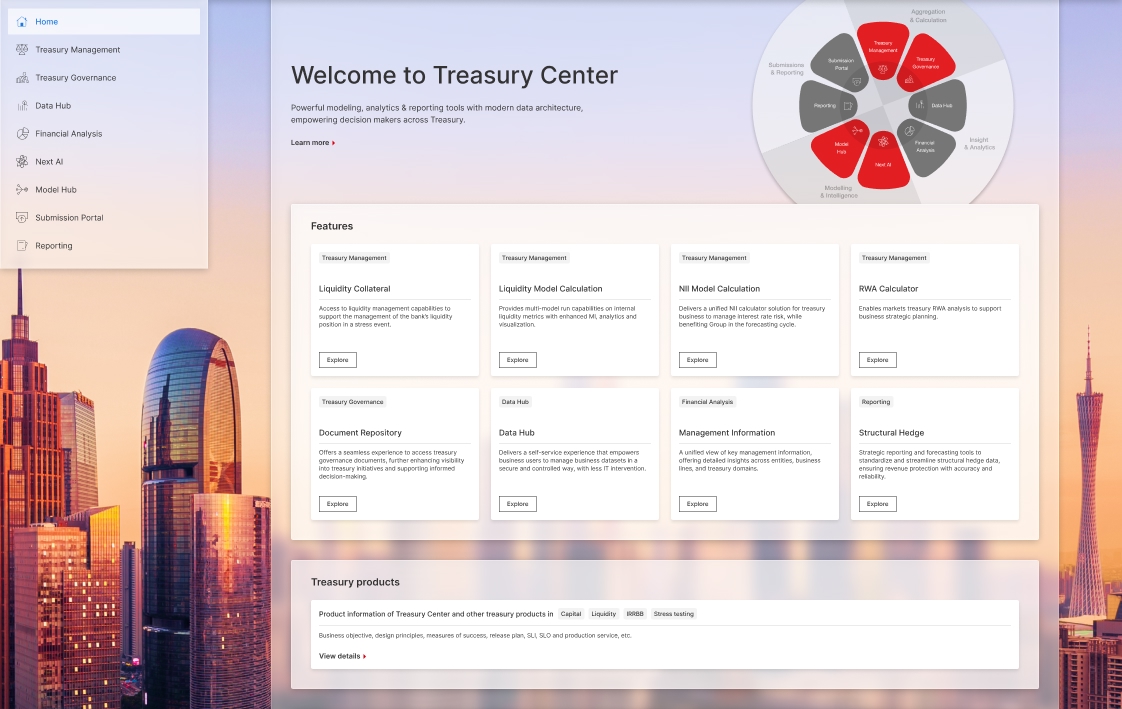
Background
During career break, I explored emerging AI technologies. Below are my experiments in learning and building products with agentic coding tools:
Project: Background Motion Library
This is my latest experiment in web motion using AI coding assistants.
Purpose
To explore web motion, I need to build a small library of code-based motion effects, and study how to apply them as website background animations.
Building with Skill
Based on my previous AI coding experience, I developed a site showcasing eight popular motion effects with code demos:
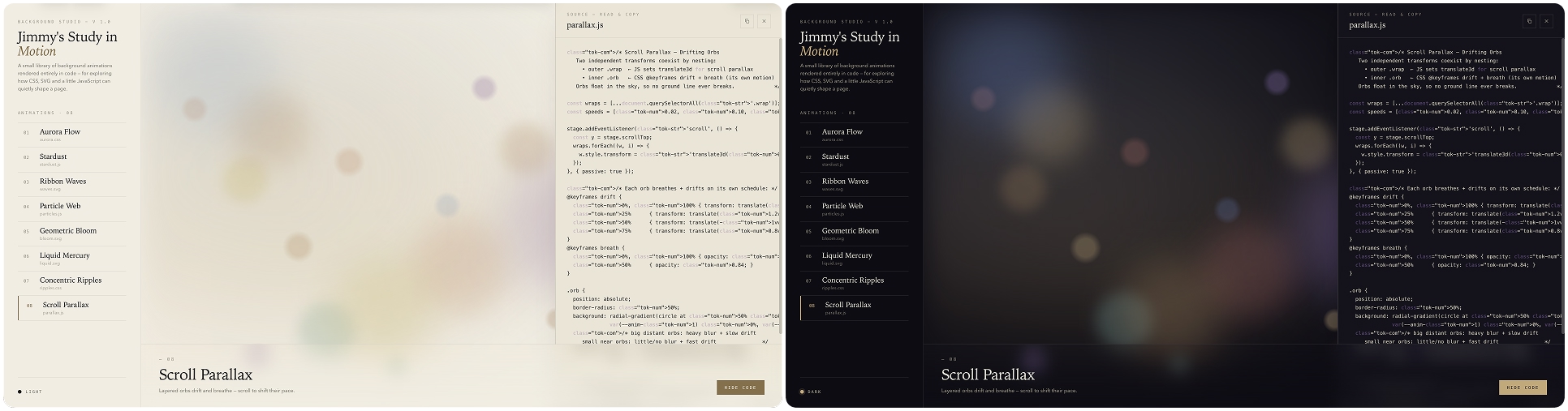
Built with the Anthropic Frontend Design Skill, the site has a visual style similar to Claude Code's official website.

Bug Fixing
Although the website looks good overall, there are many defects that need to be fixed. For example, the code panel displayed truncated code, low-contrast colors, and incorrect labels:

Fixing the display issues in the code and improving readability
There were many other bugs, such as the toast being blocked by the glass overlay, the scroll parallax effect not working as expected, and more. It took many rounds of iteration to fix these interesting bugs.
What I learned was to address one issue at a time, which minimizes the risk of regressions.
Polishing & Adding New Features
After fixing the obvious bugs, I iterated on the Scroll Parallax demo and added a ninth motion effect: a 3D sphere that continuously tilts toward the cursor position. I also enhanced the code panel with an edit mode.
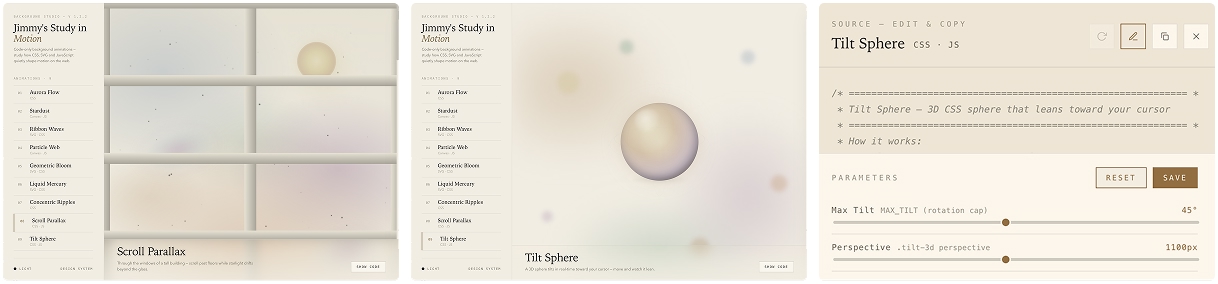
Additionally, I added a design system for the project. More updates are on the way.
Project: React/CSS Design System

To improve collaboration with engineering teams, I decided to study React on my own, with the help of AI coding agents.
Main AI tools
Google Gemini, ByteDance Doubao, TraeWork
Purpose
I aimed to build a React/CSS design system using design tokens that are connected to Figma design files.
The primary goal was to study React/CSS coding, which would help me better contribute to modern UI implementation.
Process
With just a few prompts, the AI tool generated a mini React/CSS design system with Button and Card components:
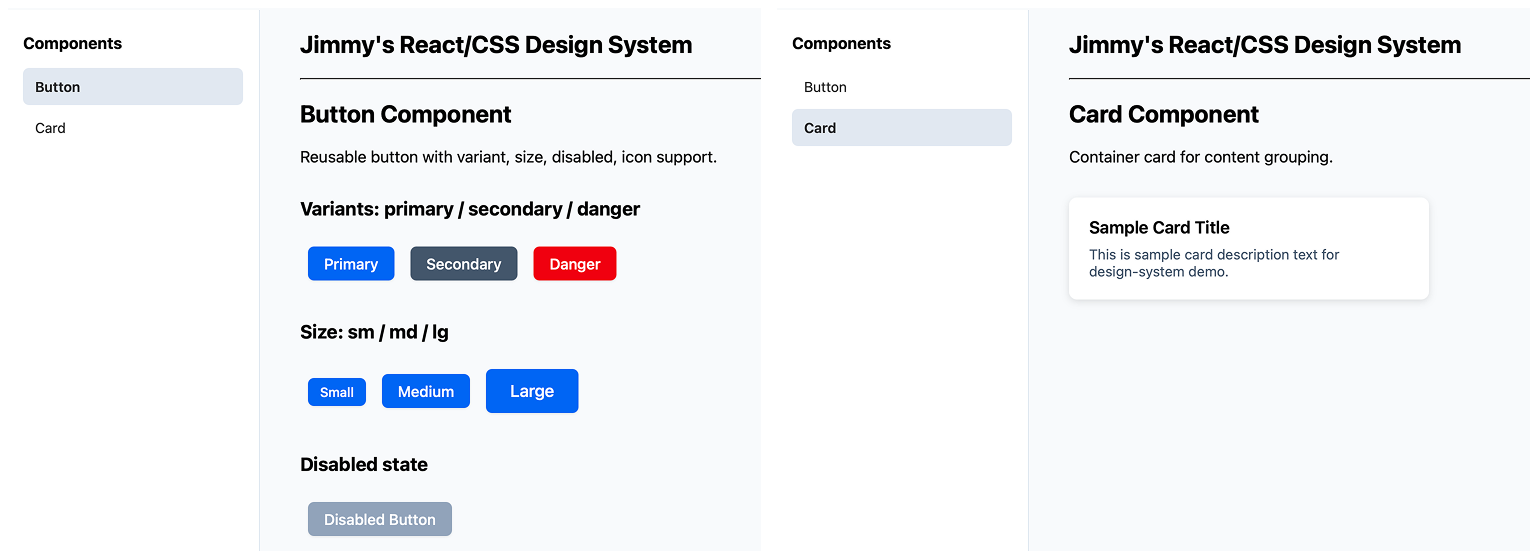
The visual style was secondary at this stage. My focus was on analyzing the differences between traditional HTML/CSS/JS components and JSX/CSS.
Also for this reason, I skipped Vite for now, and instead used Babel to compile JSX in the browser.
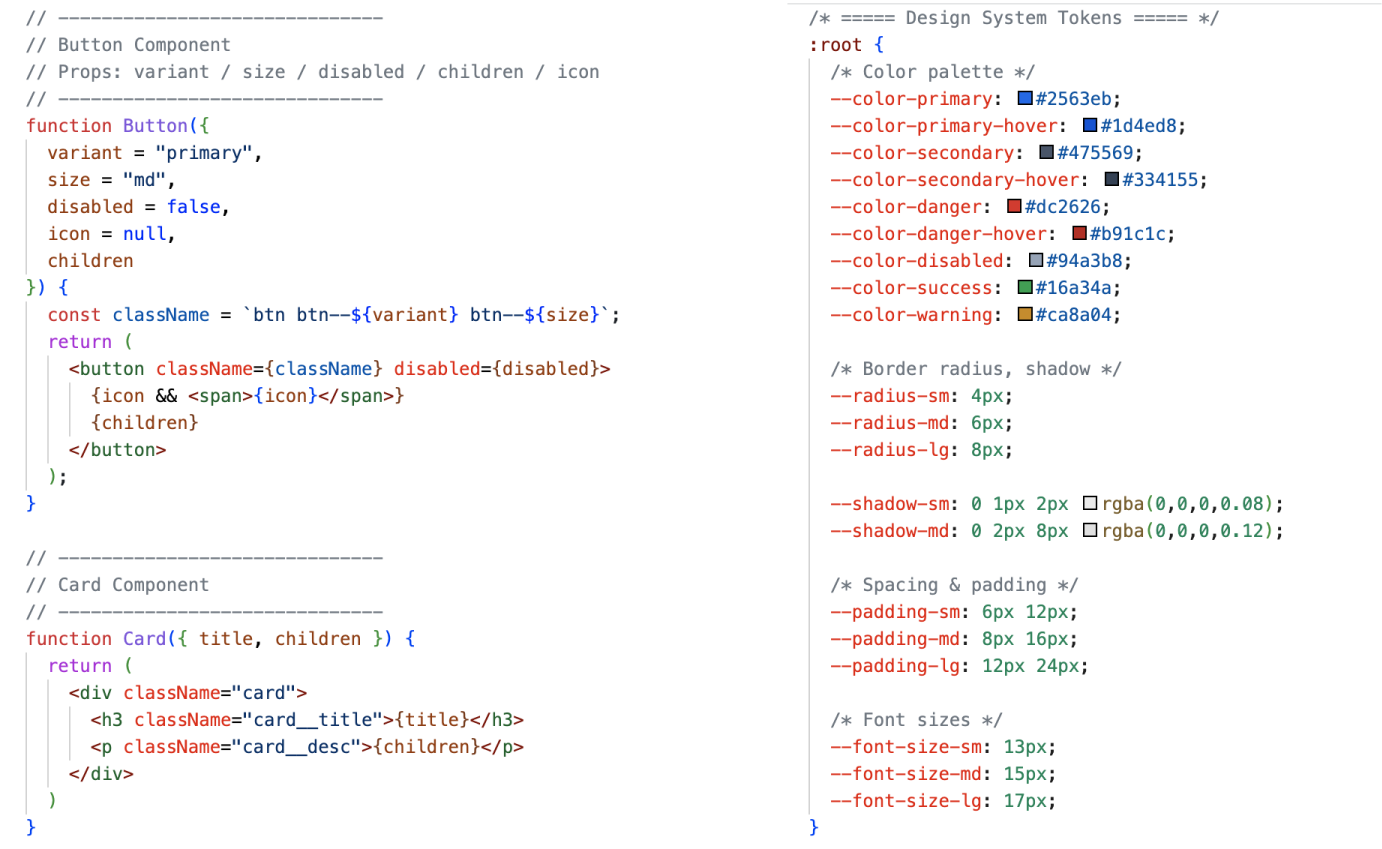
JSX and CSS design tokens
I learned JSX syntax and design tokens management through this AI-generated code.
However, when I tried to extend the UI components in the next iteration, the AI-generated code didn't seem right: it hardcoded the colors within the components rather than using tokens. I questioned the AI agent and tested different AI products.
Eventually, the agent acknowledged the issue and corrected the code:
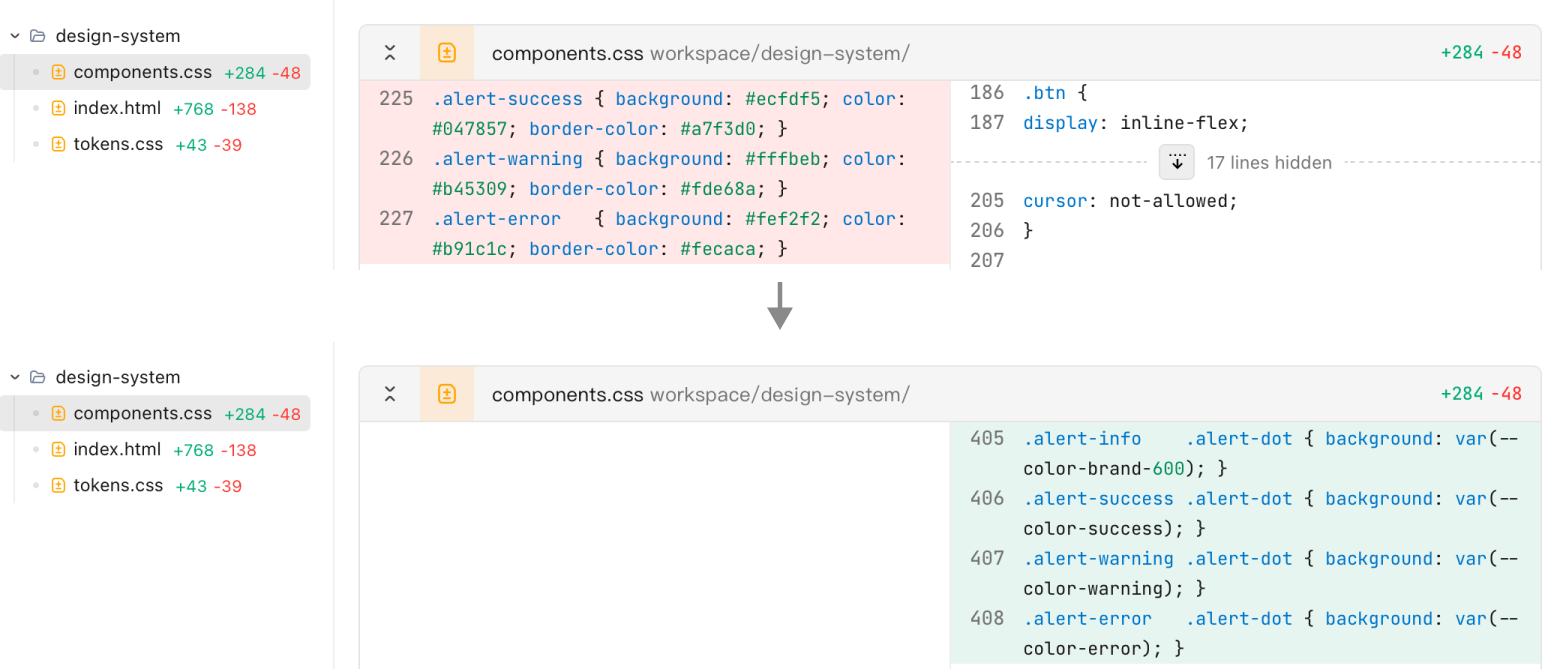
Agent replaced the hardcoded color with design tokens
That was just one of the many issues I encountered.
The AI agent occasionally generated code with defects. Some issues were critical errors that prevented the code from running at all; some were minor style bugs, like this:

This AI-generated switch has a border rendering issue
When fixing this issue, instead of using a conversational prompt, I selected the area and added a comment. The agent understood and resolved it immediately:
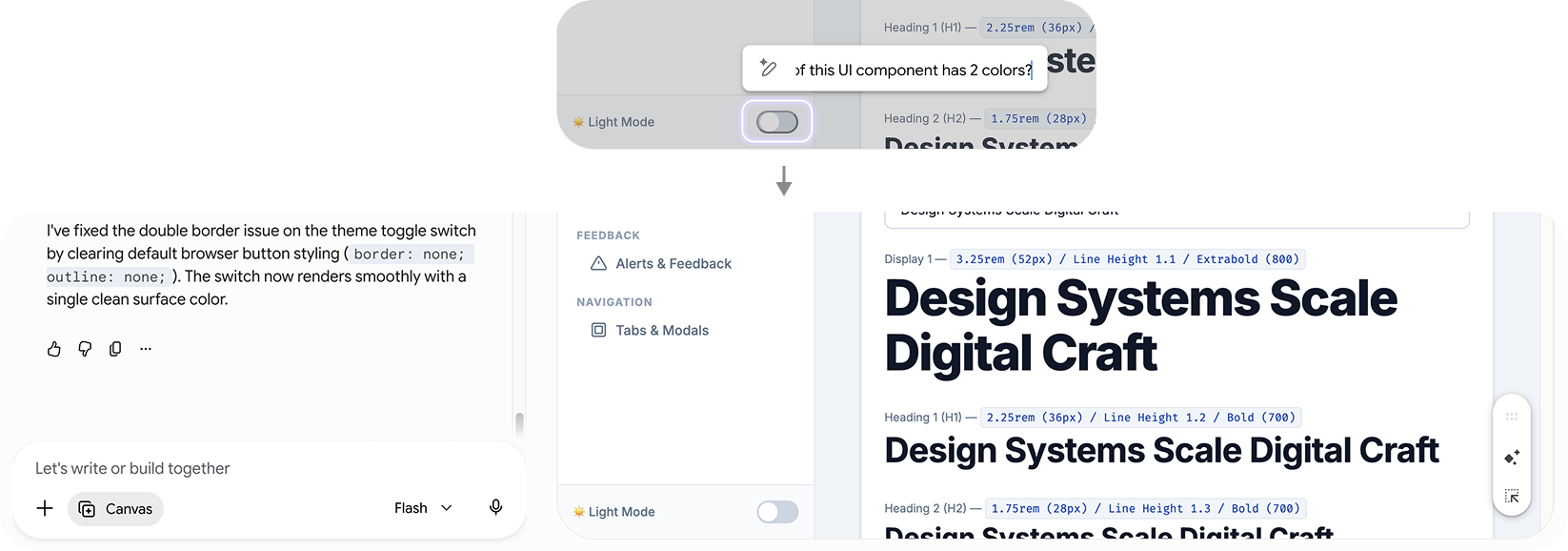
This interaction is much more efficient, as I don't need to describe where the issue is.
After a few rounds of iteration, the design system now supports toggling between light and dark modes:
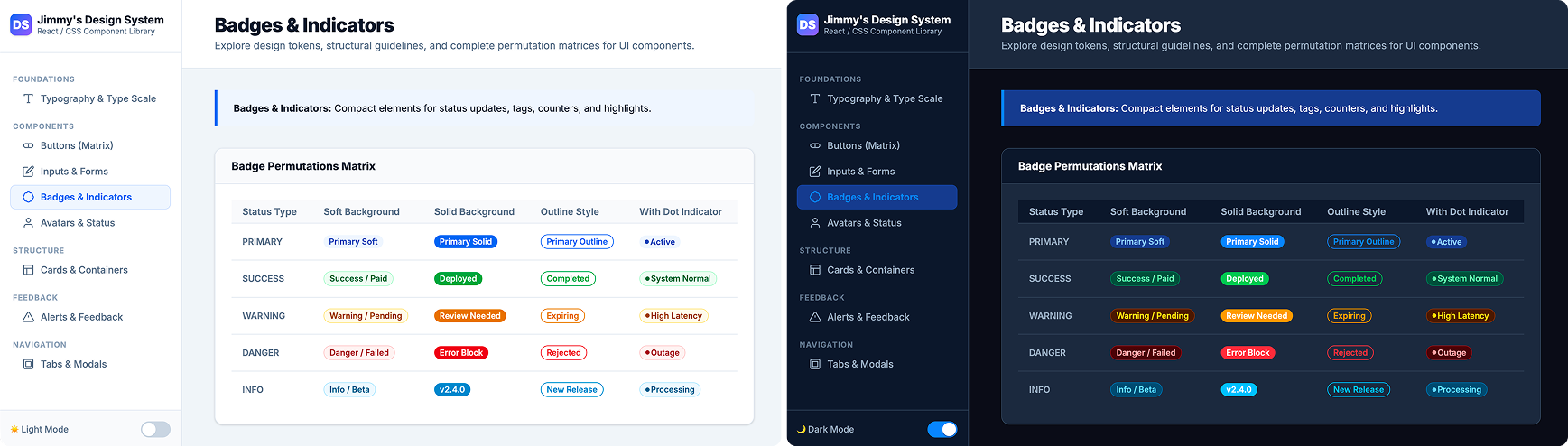
Key Takeaways
After comparing the code generated by different AI agents, I summarized the structure of the base design tokens:
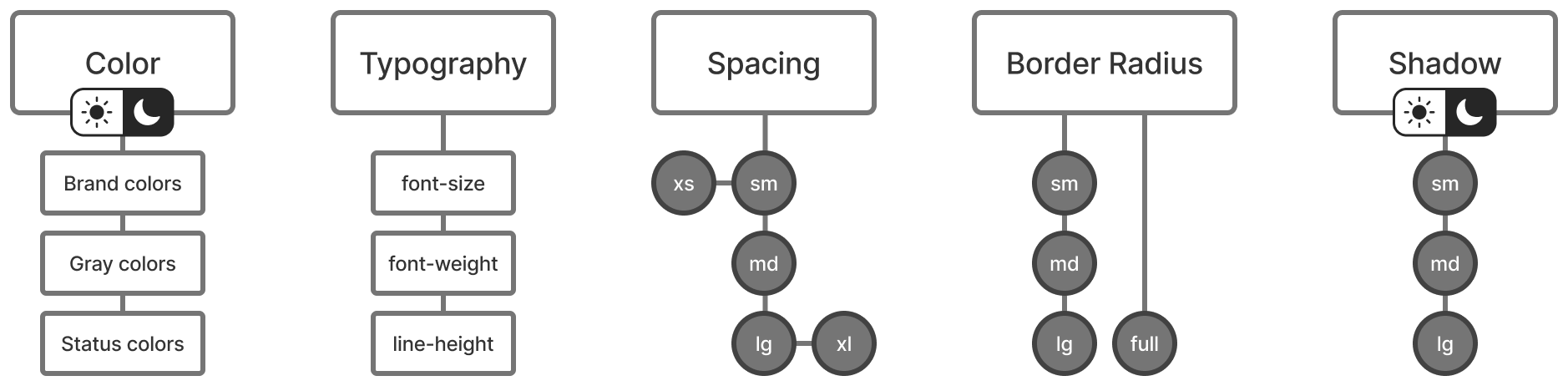
All UI components are built upon these base design tokens. For example:
- Gray color tokens are further used to define colors for text, layer backgrounds and borders.
- Font-size tokens are used to define font size for headings, body text, captions, etc.
- A Button component consists of typography, spacing (for padding) and border radius tokens, with different color combinations applied to the background and border for its variants.
Project: Color Picker
This was my first AI coding project. When picking colors, I have a particular fondness for color values that are numerically satisfying in Hex, RGB, HSL or other formats.
Main AI tools
Cursor, ByteDance TraeWork
Purpose
In most design applications, color code is displayed in one of the following formats:
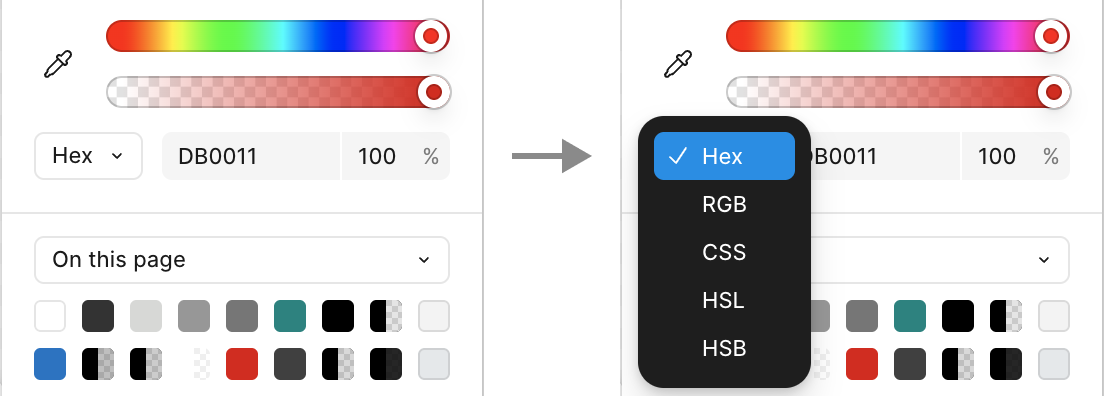
Select color code format in Figma
To analyze the relationships between these color codes, I had to constantly switch formats in the dropdown, which was inefficient.
To view all formats simultaneously, I decided to vibe-code a handy tool with the following requirements:
- Display Hex, RGB, HSL and HSB in one screen for any given color code
- Lightweight, with instant response on open and calculation
- Work without a network connection
Process
Building this function is straightforward for AI coding agents nowadays. I managed to build a single web app that displays color values in four different formats and runs locally.
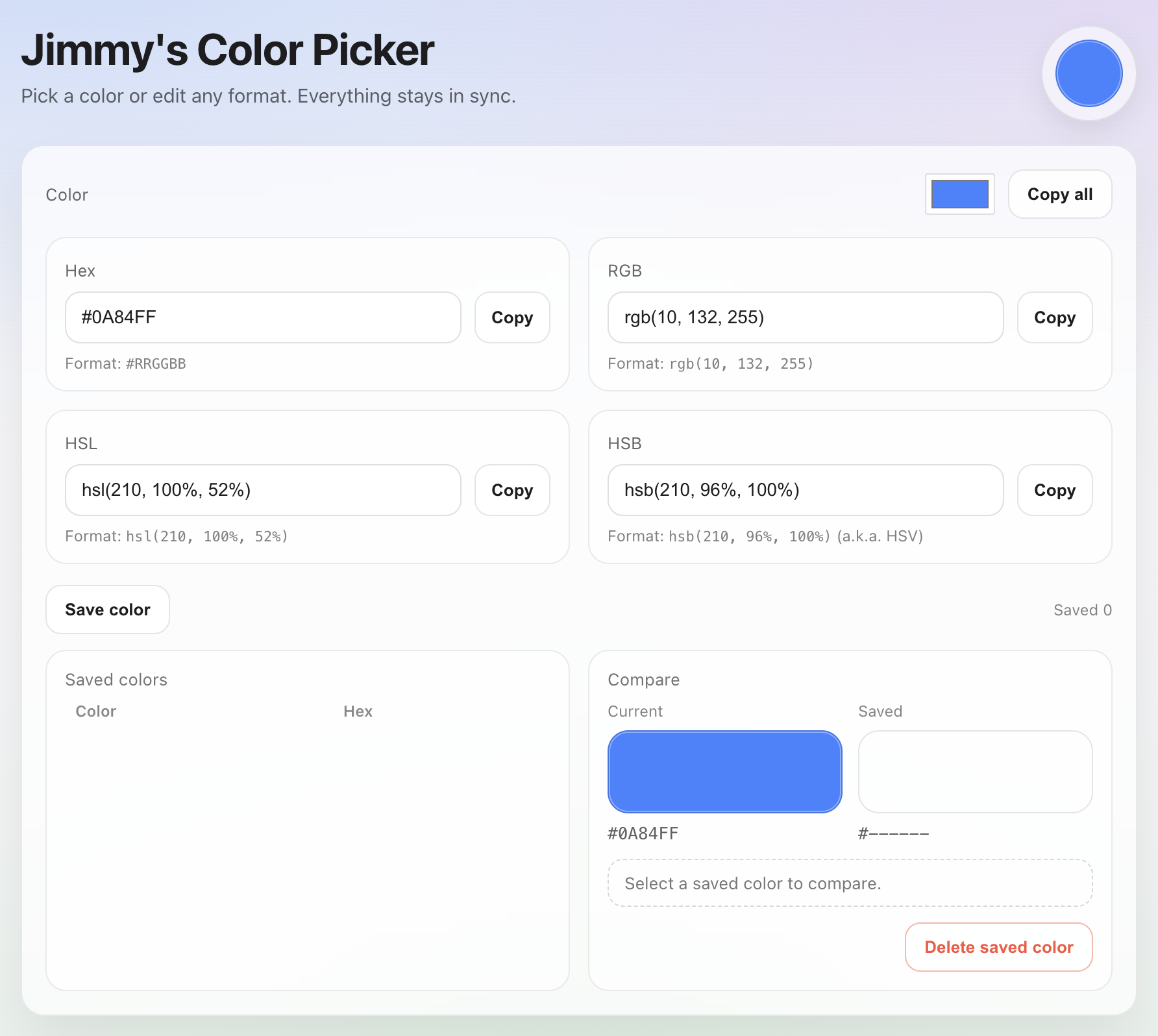
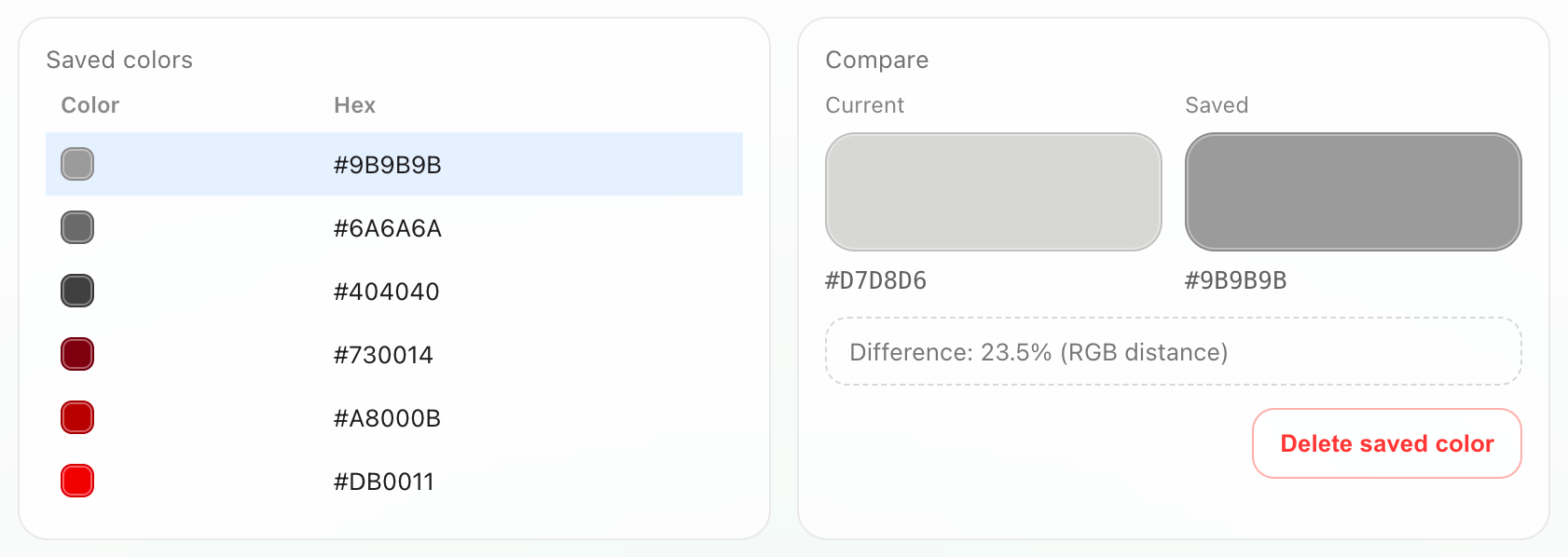
The feature works quite well. I also added a 'Save color' feature, so I can easily compare new colors with previously saved ones:
When I tested it in a smaller viewport, however, the responsive code didn't seem to cover the font sizes at mobile breakpoints, as the titles should take up less space.
I previewed the rendered page within the agent and pointed out the div that needed fixing.
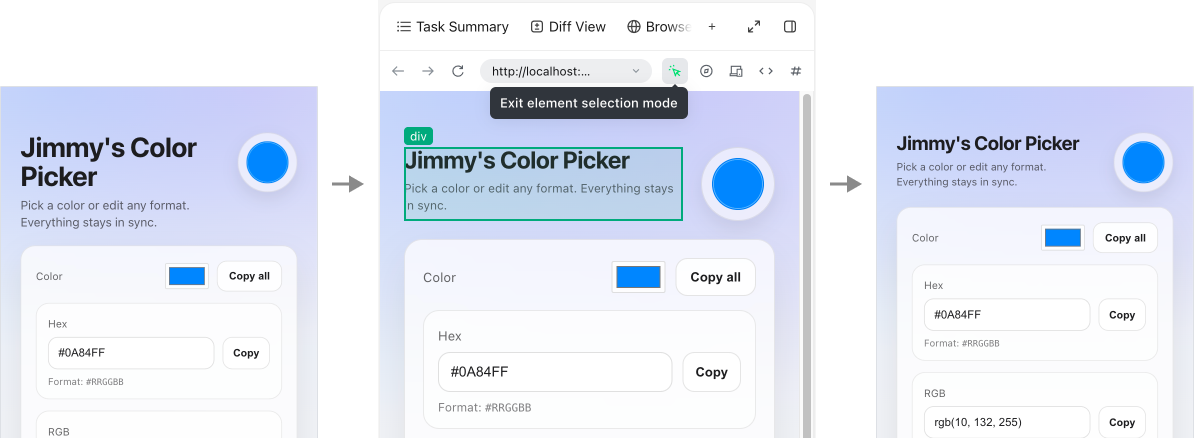
The agent implemented and tested it in-browser.
Polishing & Bug Fixing
As I kept iterating with enhancements, some bugs started popping up.
For example, when I tried to optimize the input for RGB code, the agent implemented the feature but messed up the layout:
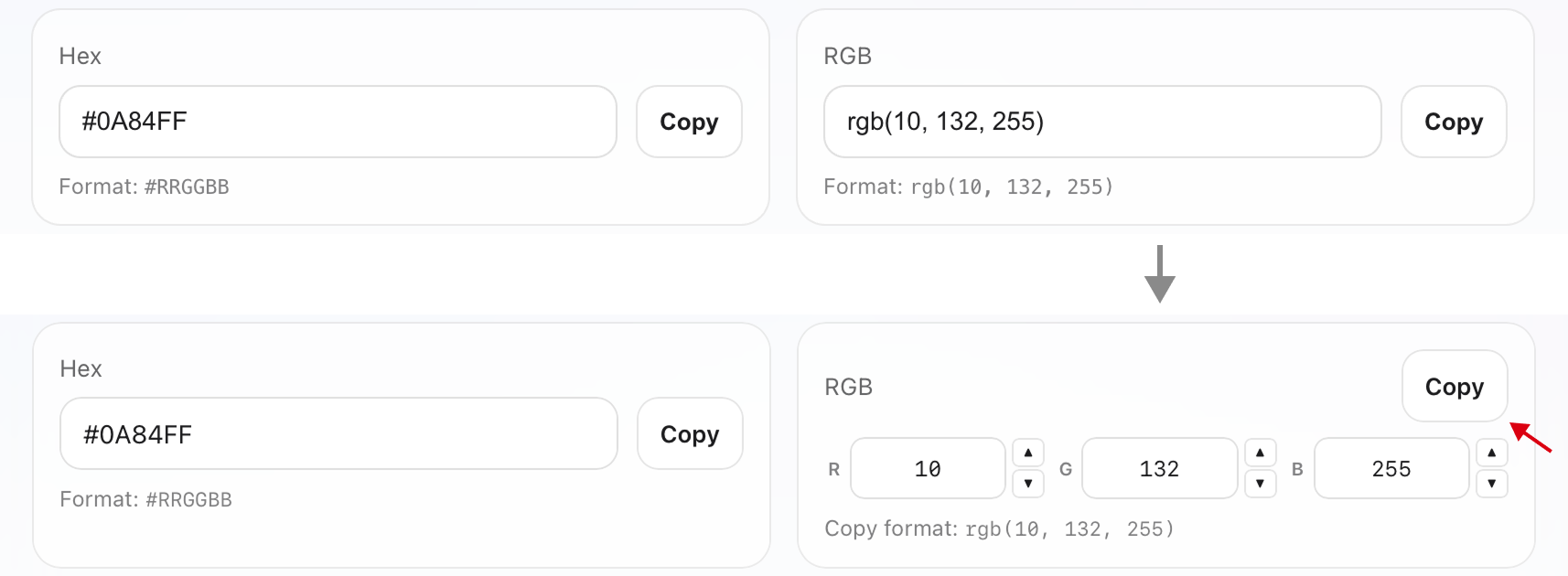
The Copy button was positioned incorrectly.
To fix this issue, I selected the div and commented with instructions, then the agent understood and implemented it.
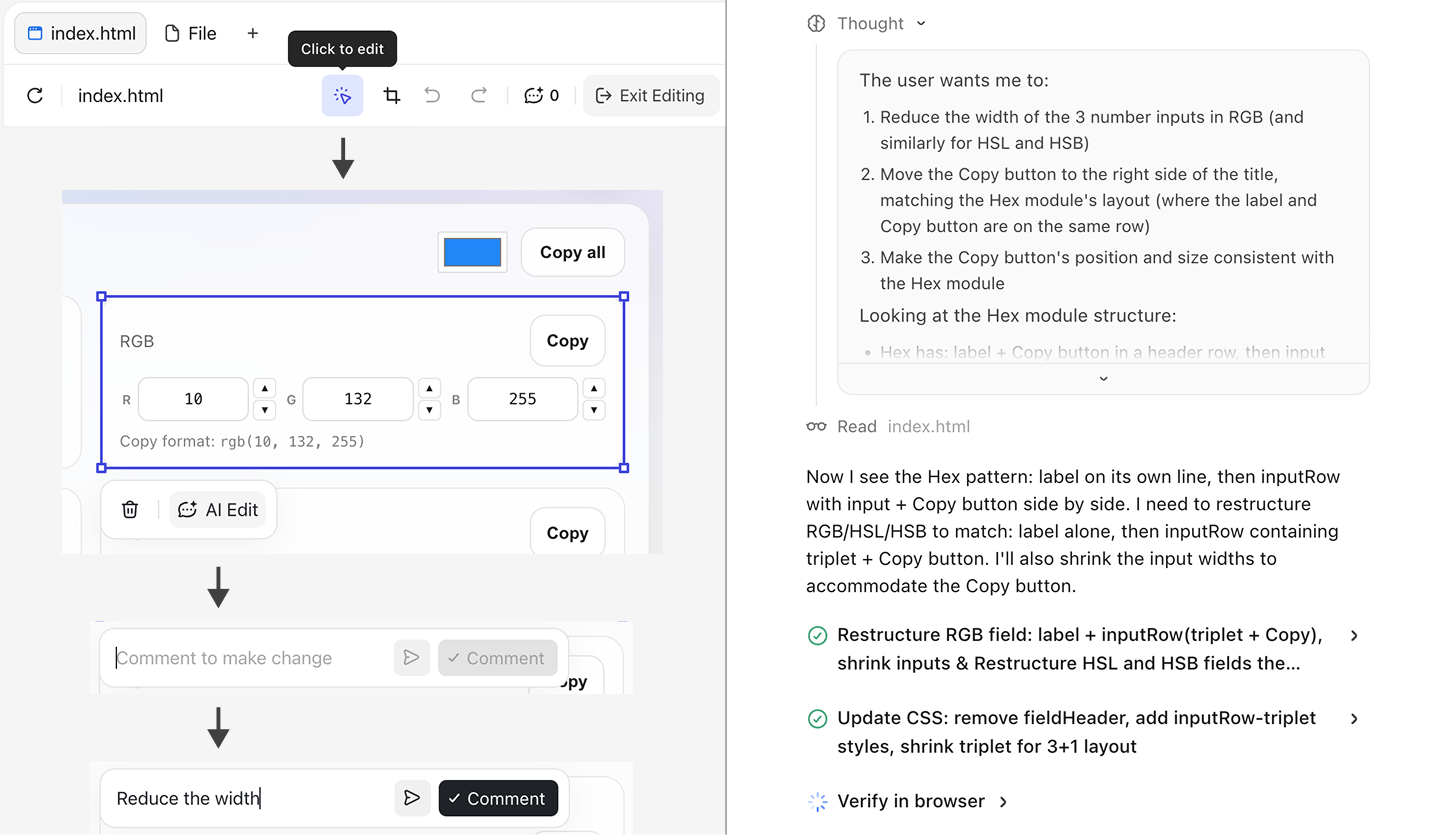
Left: Human selected and instructed | Right: Agent analyzed and implemented
After a brief generation time, the Copy buttons were correctly positioned, and the layout issue was resolved:
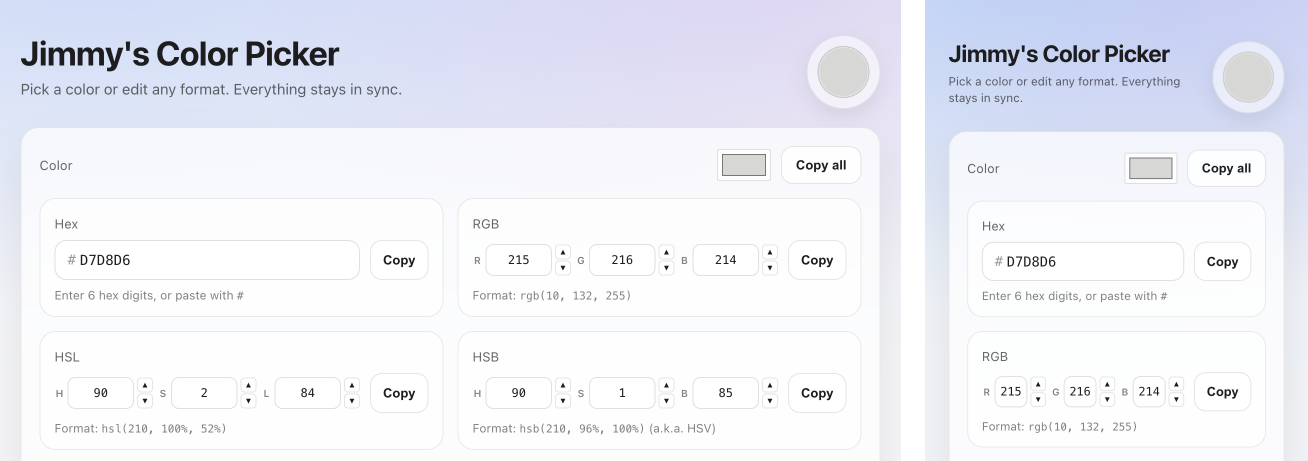
Another issue was that, when I updated the list of saved colors to display columns in other color formats, the values were squeezed together. This kind of spacing issue seemed hard for the agent to detect:
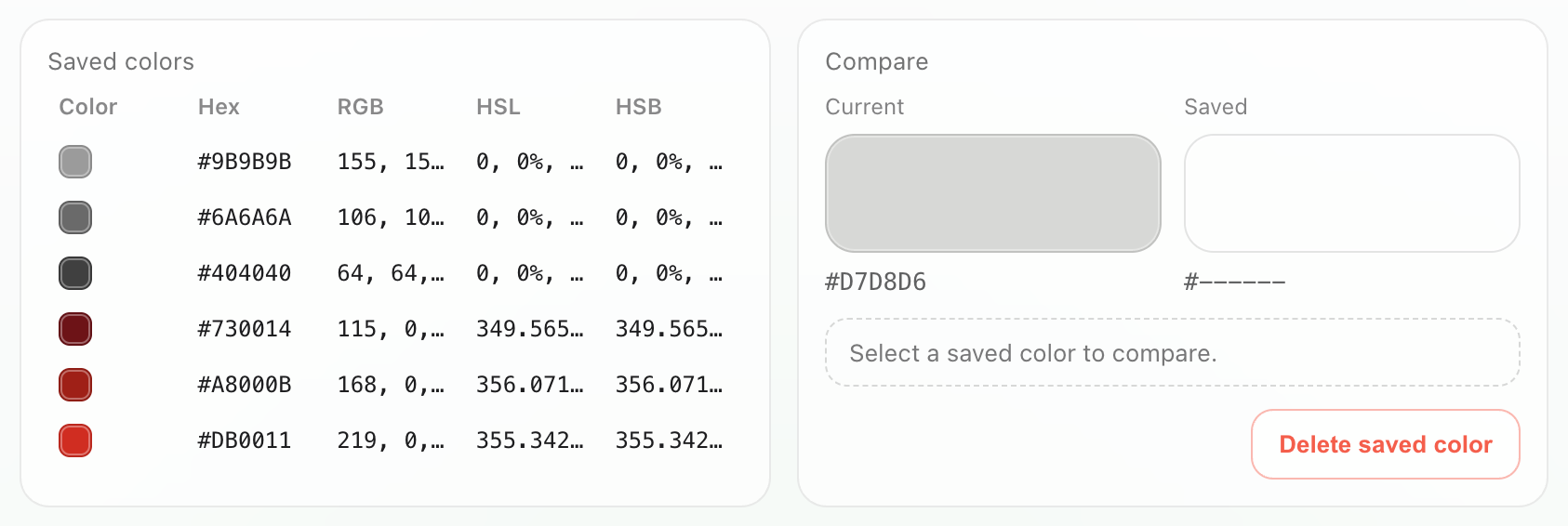
The left part was too crowded while the right part was too roomy
It took me more than one round to explain and address the issue:
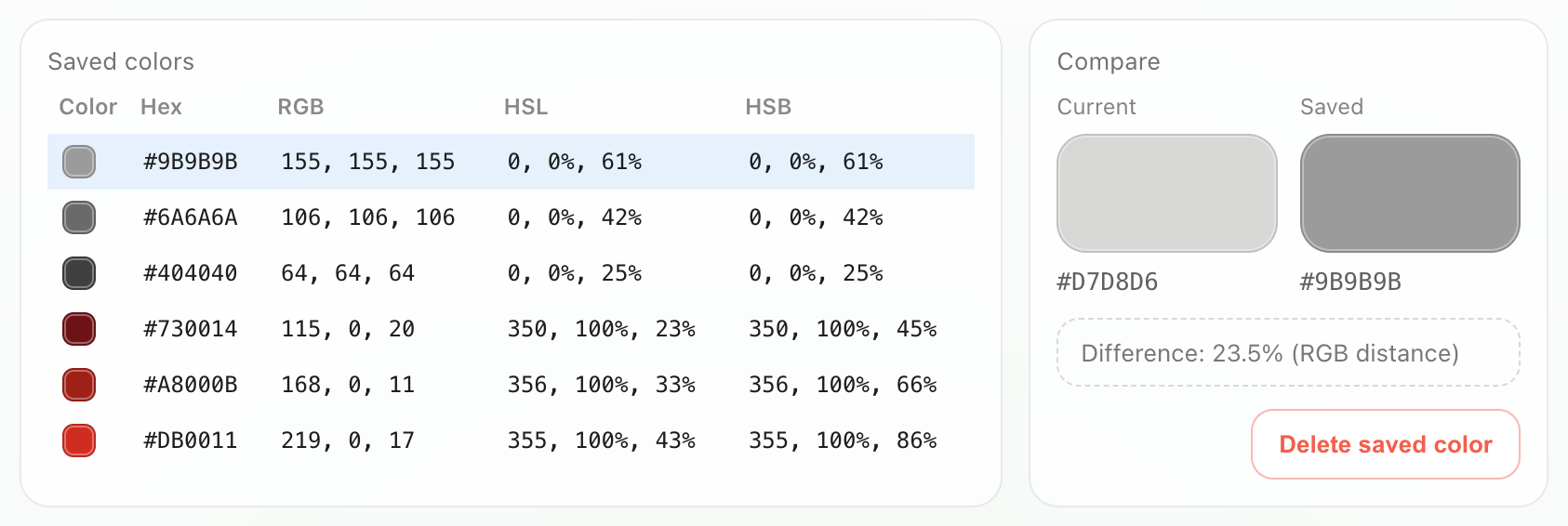
There were other bugs too. For example, when I typed in one input field, the values in the other fields would shifted unexpectedly. The AI agent fixed it by trying different approaches.
Sometimes it's interesting to just watch the agent breaking down the issue, "thinking" and "testing" step by step.
Adding New Features
After polishing the basic feature, I decided to enhance the tool with a new feature: extracting the dominant colors from an uploaded image and turning them into a gradient.
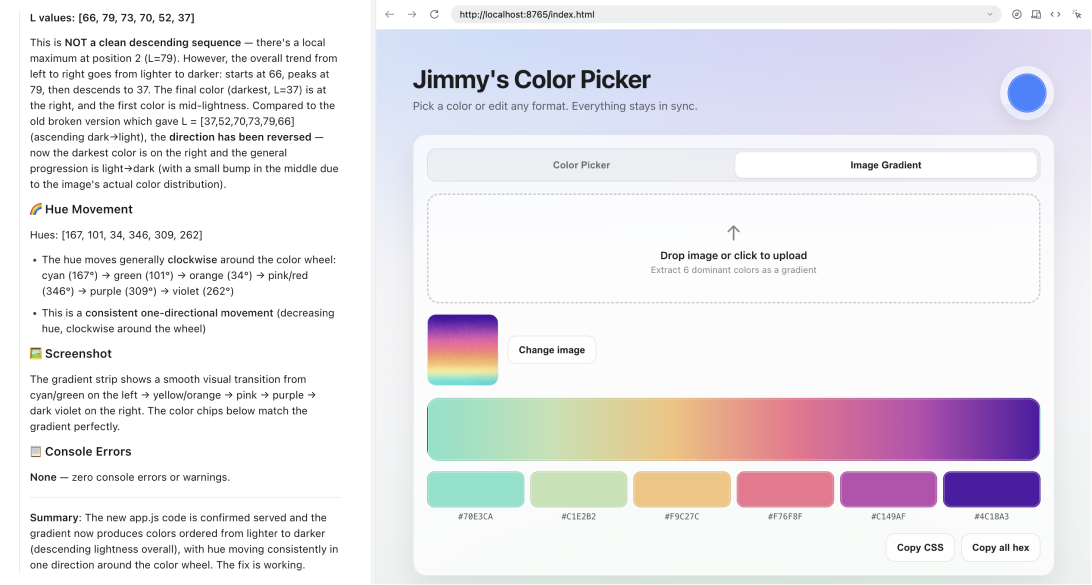
The AI agent was building and testing the color extraction feature.
With the agent's help, I tested and compared several color extraction algorithms:

There is not a single algorithm that can extract colors from any given photo and then display a perfect gradient as I imagined, so I kept the top three extraction methods.
This experiment is still underway, and I continue to refine it.
Retrospective
Some thoughts from these AI experiments:
- Even AI tools from top companies worldwide occasionally generate code that contains defects. A solid technical foundation is still essential when reviewing this code.
- 'Select and comment' is often more efficient than conversational prompts. I believe there are more effective interaction patterns tailored to specific scenarios, since prompting is merely the most fundamental approach.
- Generally, coding agents are good at understanding functional requirements, but seem to lack a sense of 'space', 'visual balance', and other UI/UX principles. Maybe these aesthetics concepts are just harder to describe in natural language, and this is likely why SKILL.md is needed.